EPS File Type Explained: How to Open, View & Convert
What is an EPS file? Open, view, and convert EPS vector files — free tools, software options, and EPS vs AI/PDF/SVG comparison for designers.
The world of visual creative work is filled with specific file formats, each with a unique purpose. As an enterprise committed to responsible and safe creative operations, Virtuall understands the importance of using the right tool for every job. One of the most enduring formats you'll encounter is the Encapsulated PostScript file. You can think of it as a sealed blueprint for a graphic—a self-contained package that ensures your visual assets are rendered perfectly, especially in professional print environments.
Before we dive in, if you're looking to manage your creative assets or generate new ones, you can explore the VirtuallPRO Creative AI OS. For those new to the platform, you can try it for free and discover a more streamlined way to handle all your visual content, from legacy files to AI-generated images.
Unpacking the EPS File Type
When you’re deep in a creative project, you’re often juggling a mix of file formats—from shiny new AI-generated visuals to trusted, older assets. The EPS file definitely falls into that second category, having been a cornerstone of professional print design for decades.
This legacy format was developed by Adobe way back in the late 1980s to solve a big headache: how to place high-quality illustrations into text documents without everything turning into a pixelated mess at the print shop. It achieved this by using the PostScript programming language to describe the image, guaranteeing what you saw on your screen was exactly what you got on paper.
A Legacy Built on Reliability
The main reason EPS files have stuck around for so long is their rock-solid compatibility, especially in professional print workflows. An EPS acts like a self-contained package, bundling all the necessary font info and image data together.
This makes it an incredibly reliable choice for sending a master logo file to a print vendor or a partner. You don't have to worry about missing fonts or broken image links messing things up. While newer formats have come along, the historical weight of EPS means you’ll still find it lurking in many established design environments and older asset libraries.
This idea of a self-contained, predictable data package isn't unique to design. In very different fields, like economic planning, structured data formats are just as crucial for achieving predictable outcomes. The way complex data is organised in economic tables shows just how vital a reliable information "container" is, no matter the industry.
The real magic of an EPS file is its ability to be a reliable container. It ensures a vector graphic can be opened, scaled, and printed by different apps on different devices while preserving the original design’s integrity.
To give you a clearer picture, here’s a quick summary of what makes the EPS file a go-to tool for designers.
EPS File At a Glance
We've put together a simple table to break down the core characteristics and ideal uses for the EPS format.
| Characteristic | Description | Best Used For |
|---|---|---|
| Vector-Based | Built on mathematical equations, not pixels. This allows for infinite scaling without any loss of quality or sharpness. | Logos, illustrations, and icons that need to be resized. |
| Print-Oriented | Designed from the ground up for high-resolution commercial printing, supporting CMYK colour modes and detailed graphics. | Billboards, brochures, business cards, and any high-quality print materials. |
| Broad Support | Compatible with a wide range of professional design software, especially older versions of Adobe Illustrator and CorelDRAW. | Archiving master files and sharing assets with external print vendors. |
| Self-Contained | Encapsulates all necessary fonts, images, and a low-resolution preview, preventing issues with missing assets. | Sending final artwork to printers or partners for production. |
| Legacy Format | While still used, it's an older format being gradually replaced by more modern files like AI, PDF, and SVG for many digital-first workflows. | Working with older asset libraries or legacy print production pipelines. |
This table highlights why, despite its age, the EPS file remains a relevant and reliable choice for specific professional design tasks, particularly in the print world.
And here’s a quick rundown of those core features:
- Vector Foundation: At its heart, an EPS is almost always vector-based. It's made of mathematical paths, not pixels. This means you can scale it from a tiny icon on a business card to a massive billboard, and it will stay perfectly crisp.
- Print-Ready: The format was literally built for high-resolution printing, which is why it became an industry standard for things like logos, illustrations, and complex diagrams.
- Broad Compatibility: While some modern apps are starting to phase out support, most professional design software like Adobe Illustrator and CorelDRAW can still open and edit EPS files just fine.
- Self-Contained: It bundles everything needed to render the graphic, including a handy low-resolution preview image. That little preview lets you see what the graphic looks like even in programs that can’t fully interpret the complex PostScript code inside.
Understanding the Power of Vector Graphics
To really get why the EPS file became such a workhorse for designers, we first need to talk about the magic of vector graphics.
Imagine you’re designing a logo. It needs to look just as sharp on a tiny business card as it does on a massive billboard. How can a single file possibly handle that kind of scaling without turning into a blurry mess?
The secret is in how digital images are built. There are two main types: raster and vector.
A raster image, like a JPG or PNG, is basically a mosaic. It’s made from a fixed grid of tiny coloured squares called pixels. When you try to make a raster image bigger, you’re just stretching those same pixels, which is why it gets blurry and “pixelated.” Think of it like a photograph – there's a finite amount of detail, and once you zoom in too far, it all falls apart.
A vector image, on the other hand, is more like a recipe. Instead of pixels, it’s built from mathematical equations that define points, lines, and curves. These instructions tell the computer how to draw the image from scratch every single time you open it.
The Scalability Advantage
This mathematical foundation is what gives vector graphics their superpower: infinite scalability.
Because the image is just a formula, you can scale it to any size imaginable—from a postage stamp to the side of a building—and it will never lose an ounce of quality. The software simply re-runs the maths for the new size and redraws every line and curve perfectly.
This is what makes vector formats like EPS absolutely essential for any asset that needs to be versatile.
A vector graphic is a blueprint for an image, not the image itself. It contains the instructions to build a perfectly crisp visual at any size, which is why it’s the professional standard for logos and illustrations.
Key Differences: Vector vs. Raster
Let’s break it down to make the concept crystal clear:
- Composition: Vectors use mathematical paths and points. Rasters use a grid of pixels.
- Scalability: Vectors are infinitely scalable with zero quality loss. Rasters get pixelated and blurry when enlarged too much.
- File Size: Vector files are often smaller because they just store formulas, not data for millions of individual pixels. A high-resolution photo, on the other hand, can be huge.
- Best Use Cases: Vectors are perfect for logos, icons, and illustrations. Rasters are the go-to for detailed photographs and complex digital paintings where you need subtle colour blending.
Getting this fundamental difference is the first step to making smart choices about your creative files. For a deeper dive, you can learn more about what a vector is in our detailed guide. Choosing a vector format like EPS for the right job means your designs will always look professional and adaptable, no matter where they end up.
Picking the Right Tool: EPS vs. Other Design Formats
Walk into any creative studio, and you'll find a dizzying array of file extensions. SVG, AI, PDF, PNG—it's an alphabet soup out there. Knowing which one to grab for the job isn't just a technical detail; it's fundamental to a smooth workflow and impacts everything from scalability to the final quality of your work.
So, how do you choose? It really boils down to one simple question: where is this graphic going to live? Is it destined for a high-resolution print run, like a glossy brochure or a massive trade show banner? Or is it a slick little icon that needs to look razor-sharp on a website without slowing things down? Each format was built for a specific job.
To cut through the noise, let's put them head-to-head. Understanding these differences will help your team pick the right format with confidence and sidestep those frustrating production headaches that can throw a project off course.
First, you need to understand the fundamental fork in the road: vector versus raster. This handy flowchart breaks it down.
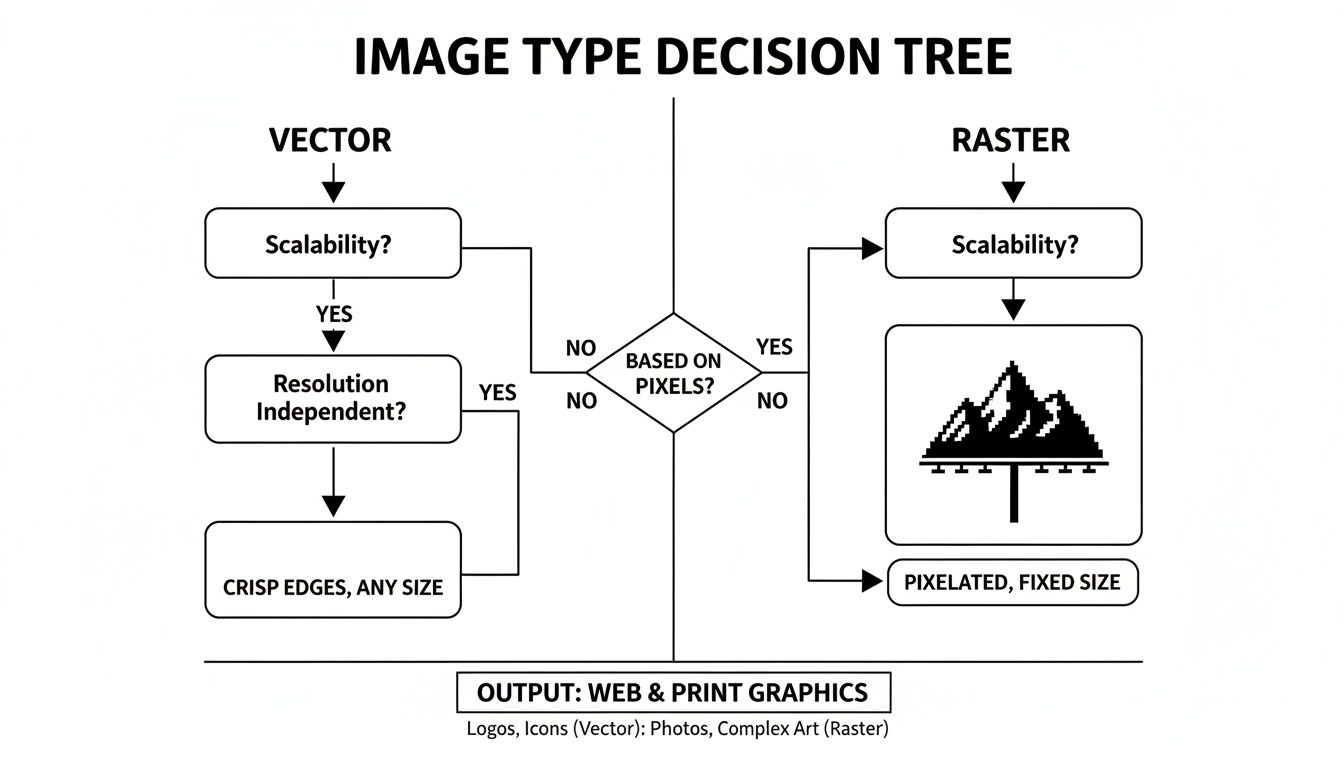
As you can see, if you need a graphic that can be blown up to the size of a billboard or shrunk to fit on a business card without losing a shred of quality, vector is your only real choice.
A Quick Look at the Main Players
To really get a feel for where the EPS file fits in, it helps to see how it stacks up against the other formats you’ll run into every day.
The table below gives a high-level view of the most common graphics formats and what they’re best used for.
Comparison of Graphics File Formats
| File Type | Primary Use | Scalability | Editability | Key Advantage |
|---|---|---|---|---|
| EPS | High-resolution print (logos, illustrations) | Infinite (Vector) | Limited (Often flattened) | Universal compatibility with print hardware |
| AI | Active design work in Adobe Illustrator | Infinite (Vector) | Full (Layers, effects, text) | The master, editable source file |
| SVG | Web graphics (icons, interactive elements) | Infinite (Vector) | High (Code-based) | Lightweight, scriptable, and SEO-friendly |
| Sharing and proofing documents | Varies (Can contain both) | Varies (Can be locked or editable) | Universally viewable on any device | |
| PNG | Web graphics with transparency | Poor (Raster) | Limited (Pixel-based) | Lossless quality and alpha transparency |
| JPG | Digital photographs and complex images | Poor (Raster) | Limited (Pixel-based) | Small file size with rich colour depth |
This gives us a solid starting point. Each format has its own strengths, and knowing them is key to making the right call under pressure.
EPS vs. The Modern Contenders
The EPS has been a reliable workhorse in print for decades, but newer formats have emerged that offer compelling advantages, especially in the digital space. Let's dig a little deeper.
EPS vs. AI (Adobe Illustrator File)
Think of an AI file as the master recipe. It’s the native, working file from Adobe Illustrator, containing every layer, effect, and editable bit of text, all perfectly organised. This is the file the original designer keeps for making future tweaks.
An EPS file, on the other hand, is like a final, sealed dish ready to be served. It flattens the graphic into a single, self-contained object. While this makes it universally readable by other vector programs and printers, it’s much more difficult to go back and change the ingredients.
Rule of thumb: Use AI files for your internal design work and active projects. Export to EPS when you’re sending a final, non-editable vector graphic to a printer or an outside partner who might not have Illustrator.
EPS vs. SVG (Scalable Vector Graphics)
SVG is the undisputed champion of vector graphics on the web. It's written in XML, a text-based language that web browsers speak fluently. This makes SVGs incredibly lightweight, perfectly scalable on any screen, and even interactive with a little bit of code.
Where EPS was built for the physical world of ink on paper, SVG was born for the digital realm of pixels and screens. Deciding between them often comes down to the broader challenge of choosing the best image format for web performance, which is always a balancing act between quality and speed.
EPS vs. PDF (Portable Document Format)
The PDF is a true chameleon. It can happily contain vector graphics, raster images, live text, form fields, and more, all bundled into a single, convenient package. When saved from a vector app like Illustrator, a PDF can even retain full editability, acting much like an AI file.
Its killer feature, though, is its universality. Just about any computer or smartphone can open a PDF without needing special software. This makes it the perfect format for sending proofs and final designs to clients who just need to view the work, whereas an EPS often needs a design program to open properly.
EPS vs. Raster Formats (PNG and JPG)
Comparing an EPS to a raster file like a PNG or JPG is like comparing a precise architectural blueprint to a photograph of the finished building. They serve fundamentally different purposes.
- PNG (Portable Network Graphics): This is your go-to for web graphics that require a transparent background—think logos, icons, or user interface elements that sit on top of a coloured backdrop. But because it’s a raster format, it will get blurry and pixelated if you try to scale it up too much. For a deeper dive, check out our guide comparing PNG format vs JPEG.
- JPG (Joint Photographic Experts Group): Absolutely perfect for detailed photographs where rich colours and subtle gradients are key. JPGs use clever compression to keep file sizes small, but this comes at the cost of quality, and they don’t support transparency at all.
Ultimately, the choice is clear. You need vector formats like EPS for any graphic that demands scalability and sharp lines, especially in print. For static, pixel-based images like photos, raster formats are the way to go.
How to Actually Work with EPS Files
Getting an EPS file shouldn't grind your workflow to a halt. This is especially true for team members who don't spend their days inside design software. The good news is, handling this legacy format is pretty simple once you know which tools to use for opening, viewing, and converting them.
While the pros need heavy-duty apps for deep editing, plenty of other options exist to make sure everyone on your team can work with these files. This is key to avoiding bottlenecks, letting marketers, project managers, and clients view and approve designs without needing a pricey software licence. When the whole team is up to speed, projects just move faster.
Opening and Editing EPS Files: The Pro Toolkit
For designers needing total control over the vector data—the lines, shapes, and colours—professional design software isn't just nice to have; it's essential. These applications are built from the ground up to understand and manipulate the complex PostScript code inside an EPS.
- Adobe Illustrator: As the original creator of the EPS format, Adobe Illustrator offers the best support, period. Open an EPS here, and you get direct access to every vector path. You can tweak colours, resize elements, and completely deconstruct the artwork. It’s the industry standard for a reason.
- CorelDRAW: A serious competitor to Illustrator, CorelDRAW also handles EPS files like a champ. It's a favourite in specific industries like sign-making and apparel design, making it a go-to tool for many print-focused creatives.
- Affinity Designer: A powerful and more recent alternative, Affinity Designer imports EPS files without breaking a sweat. It’s a fantastic, budget-friendly choice for pros who want robust vector tools without a monthly subscription.
These are the tools you'll reach for when serious changes are needed. If a logo needs a new colour variant for a marketing campaign, a designer will open the master EPS in one of these programs to make the switch and export a fresh version.
Viewing and Converting EPS Files (Without the Fancy Software)
But what about team members who just need to see what’s inside the file? A project manager double-checking a logo or a marketer grabbing an asset for a slide deck doesn't need a full design suite. Luckily, there are tons of user-friendly solutions.
The secret to a smooth workflow is making sure non-designers can access final assets without hitting a technical wall. Free viewers and converters are the answer.
Several great tools bridge this gap, letting anyone view an EPS or convert it into a common format like a PNG or JPG.
Free Software for Viewing:
- Inkscape: A powerful, open-source vector editor that can open and view EPS files perfectly.
- GIMP: While it’s mainly for raster images (like photos), GIMP can open an EPS by converting it to pixels on import.
- EPS Viewer: A dead-simple freeware tool that does one job and does it well: opening EPS files quickly.
Online Converters and Viewers:
Countless websites let you just upload an EPS file and convert it to something else right in your browser. This is often the fastest route for team members who need a usable graphic now. By turning it into a PNG, they can drop it straight into a presentation or document.
This two-track approach keeps everyone moving. Designers get the power they need, while the rest of the team stays self-sufficient and agile.
When to Use EPS in Your Creative Projects
Knowing the tech specs of a file is one thing. Knowing exactly when to use it is what separates a smooth project from a frustrating one. The EPS file type really shines in a few key scenarios, especially where quality and consistency are totally non-negotiable.
Get these use cases right, and you’ll make much smarter choices for your creative assets.
The absolute most critical job for an EPS file is professional printing. Because it’s built on the PostScript language, it acts like a universal blueprint that high-end commercial printers just get. This direct line of communication guarantees your colours, lines, and gradients come out with exacting precision.
The Gold Standard for Print Production
When you’re sending artwork off for physical production, the EPS format is almost always your safest bet. It’s the go-to when flawless output is the top priority.
Think about these common print jobs:
- Large-Format Printing: For things like billboards, trade show banners, and vehicle wraps, you need a vector file that can be blown up to a massive size without losing an ounce of quality. An EPS makes sure every line stays perfectly crisp.
- High-Quality Brochures and Publications: The format’s solid support for CMYK colour spaces means what you see on your screen is what you’ll get in print. No more nasty surprises with colour shifts.
- Speciality Printing: For merchandise like screen-printed t-shirts or engraved items, the clean vector data in an EPS file provides the sharp outlines these production methods demand.
Distributing Master Logos and Brand Assets
Another powerful role for the EPS file type is as a universal master file for brand assets. When you need to send your company logo out to partners, vendors, or the press, an EPS is the ideal package. It gives them a high-quality, scalable graphic they can use just about anywhere.
For anyone working on branding, knowing the right file formats is vital for ensuring assets maintain their quality and scalability, a core principle of good professional logo design services. The EPS format essentially acts as a locked, final version.
By sending an EPS, you give partners a versatile asset while protecting your original, fully editable native file (like an .AI file). This helps you maintain control over your brand’s core creative assets.
This simple strategy is a huge help in keeping your brand consistent across different channels and collaborators. You’re empowering others to use your branding correctly without giving away the keys to the original design.
When to Choose an Alternative
While it’s a workhorse, EPS isn’t a one-size-fits-all solution. For anything digital-first, more modern formats often do a better job. For instance, SVG (Scalable Vector Graphics) is the clear winner for web-based logos and icons thanks to its tiny file size and scriptability.
Ultimately, the decision to use an EPS often comes down to industry standards. While modern creative workflows are moving to the cloud, the physical print world still relies on established formats for consistency. Using an EPS for print is about choosing the right tool for a very specific and demanding job—ensuring your creative vision is perfectly realised.
Managing EPS Assets in a Modern Workflow
The EPS file is a workhorse, a reliable veteran of the design world. But let's be honest: in today's breakneck creative environment, a folder of loose EPS files on a shared drive just doesn't cut it anymore. It’s a recipe for chaos.
To keep projects flowing, those valuable logos and illustrations need a proper home—a modern, centralised system. This is where a Creative OS like VirtuallPRO becomes indispensable for any team that's serious about its workflow.
Imagine one place—a single source of truth—where your master EPS logos are not only stored but are also smartly tagged, versioned, and sitting right alongside all your other creative assets. This is about breaking down the walls that form when legacy files are stuck in one system while newer formats live somewhere else entirely.
Centralising Your Creative Core
A unified workspace solves so many of the headaches that slow teams down. When you bring an EPS logo into VirtuallPRO, it stops being a static file and starts being an active, living part of your creative ecosystem.
This structured approach pays off in a few huge ways:
- Version Control: Easily track every tweak to your master logos. No more second-guessing if you have the latest version or, worse, sending the wrong one to print.
- Find Anything, Instantly: Use tags and metadata to pull up the exact EPS file you need in seconds. Say goodbye to digging through folders named
Logo_Final_V3_FINAL_use_this_one. - Access for Everyone: Give marketers, project managers, and designers secure access to the assets they need, without forcing them to install specialised software just to see a preview.
For any team looking to get their house in order, learning how to organise digital assets is the first, most crucial step toward efficiency and brand consistency.
Bridging Legacy Formats and AI Workflows
Here’s where it gets really powerful. A modern system doesn't just store old files; it connects them to the future. That EPS file type doesn't have to be a relic. It can be the launchpad for brand-new creative ideas, especially as AI becomes a standard part of the toolkit.
A Creative OS transforms legacy assets from static files into dynamic components. Your master EPS logo can be instantly pulled into an AI generation flow, becoming a key element in a new ad campaign or social media visual—all within a single, collaborative workspace.
This opens up entirely new ways of working. A designer can get feedback directly on a vector graphic using annotation tools right in the platform. A project manager can then grab that approved EPS logo and use it as a brand element in a prompt to generate a new series of product mockups.
By bringing your EPS assets into a platform like VirtuallPRO, you're doing more than just organising them. You're future-proofing your entire creative operation. You’re ensuring that every single asset, no matter how old, is ready to contribute to a faster, more collaborative, and deeply organised creative process.
Common Questions About the EPS File Type
Even after getting the hang of EPS files, a few common questions always seem to pop up. Let's clear up the usual points of confusion so you can handle the format with confidence.
Think of this as your quick-fire guide for troubleshooting those real-world EPS moments.
Can I Properly Edit an EPS File in Photoshop?
This question comes up all the time, and the answer isn't a simple yes or no. You can open an EPS file in Adobe Photoshop, but it’s absolutely the wrong tool for editing the vector part of it.
Here’s why: when Photoshop opens a vector file like an EPS, it has to rasterise it first. That means it converts all those clean, mathematical lines into a flat grid of pixels. You’ll be prompted to pick a resolution, and from that moment on, you’ve lost the infinite scalability that makes vectors so great.
You can then paint on it or apply filters like any other JPEG, but you can no longer tweak the original shapes or text. For that, you need a true vector editor like Adobe Illustrator or CorelDRAW.
Why Does My EPS File Look Blurry or Pixelated?
Opened an EPS and it looks fuzzy? Don't panic. What you're almost certainly seeing is the low-resolution preview image that’s embedded inside the file itself.
The EPS format was cleverly designed to hold two things at once:
- The High-Resolution Vector Data: This is the core of the file—the PostScript code that contains your perfectly sharp, scalable graphic.
- The Low-Resolution Raster Preview: This is just a small, pixel-based thumbnail so that programs without a PostScript interpreter can still show you something.
Your computer is just showing you the tiny placeholder, not the actual high-quality vector information tucked away inside. Once you send it to a professional printer or open it in the right software, the final output will be perfectly crisp.
Is the EPS Format Obsolete?
"Obsolete" is a bit harsh. "Legacy" is a much better word for it. For anything web-related or purely digital, modern formats like SVG (Scalable Vector Graphics) have definitely taken over. They’re smaller and play much nicer with web browsers.
However, the EPS format is still the undisputed workhorse in one critical area: professional print production. Many commercial printers and older, high-end equipment are built around the EPS workflow. It’s a reliable, time-tested way to send final logos and illustrations to a print vendor and know the output will be precise.
So while its glory days are behind it, EPS still has a very important job in established, print-focused pipelines.
Ready to bring your legacy assets and modern AI workflows together? With VirtuallPRO, you can manage, version, and collaborate on all your creative files—from classic EPS vectors to cutting-edge AI generations—in one unified workspace. Start organising and creating for free with VirtuallPRO.